Testing SecureCall
DEPLOYMENT
Introduction
SecureCall offers customers (merchants) different user interfaces for their staff to take payments-by-phone.
Option 1. As a stand-alone web page, using your Webex Calling Service - (this guide)
Option 2. Embedded SecureCall in the Webex Calling Client
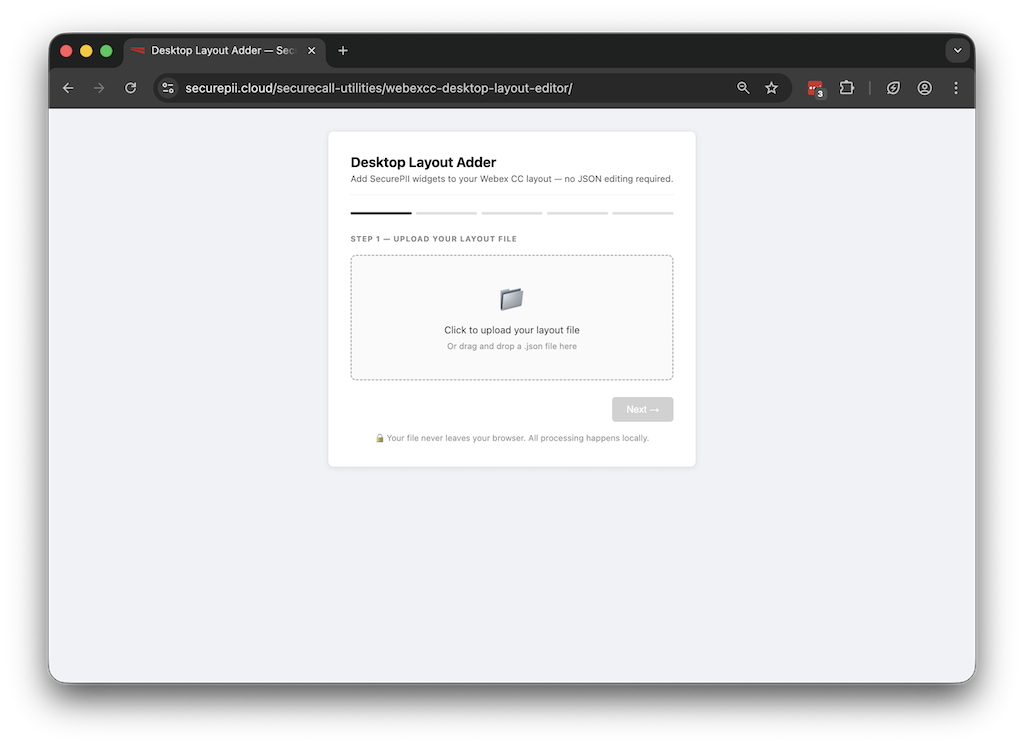
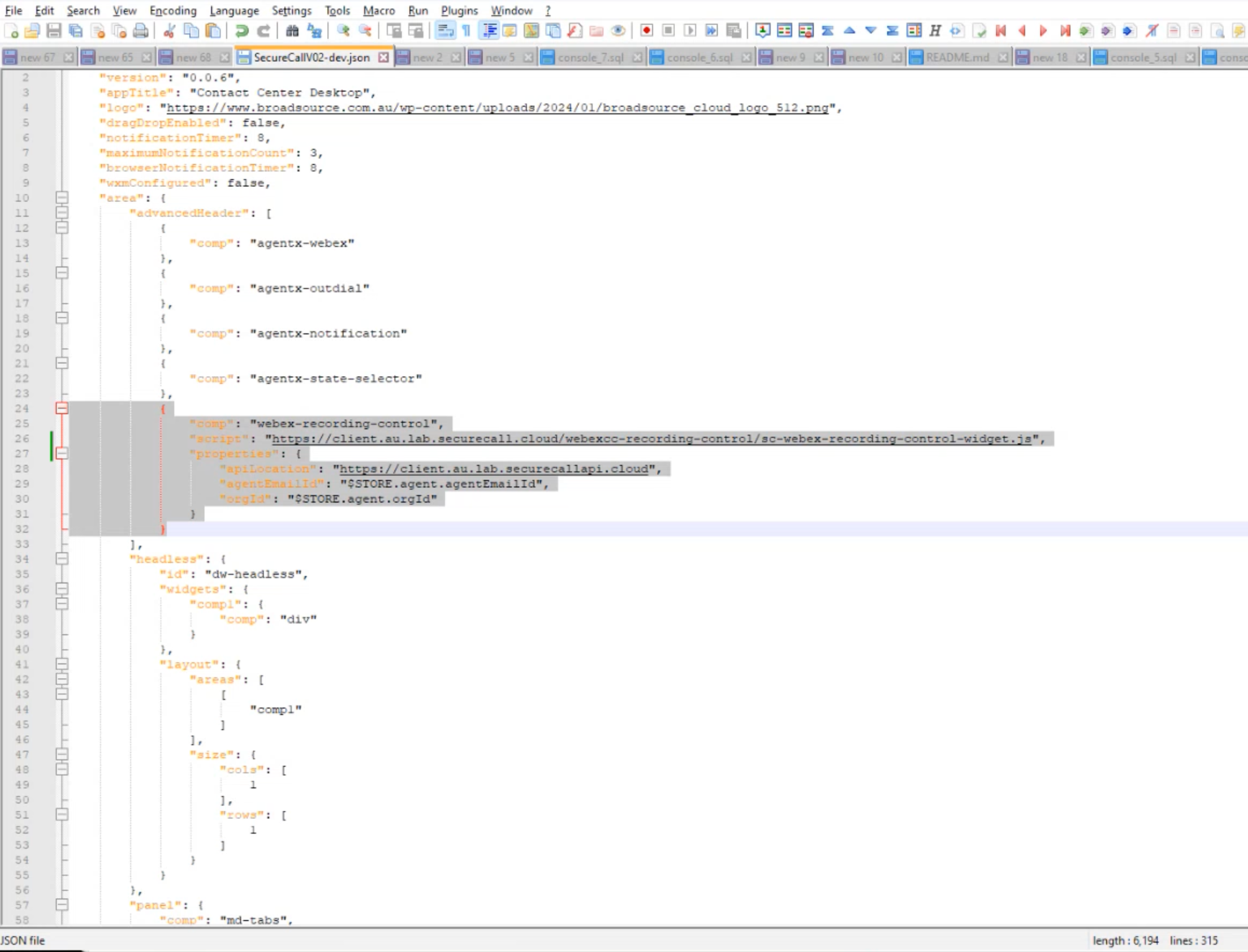
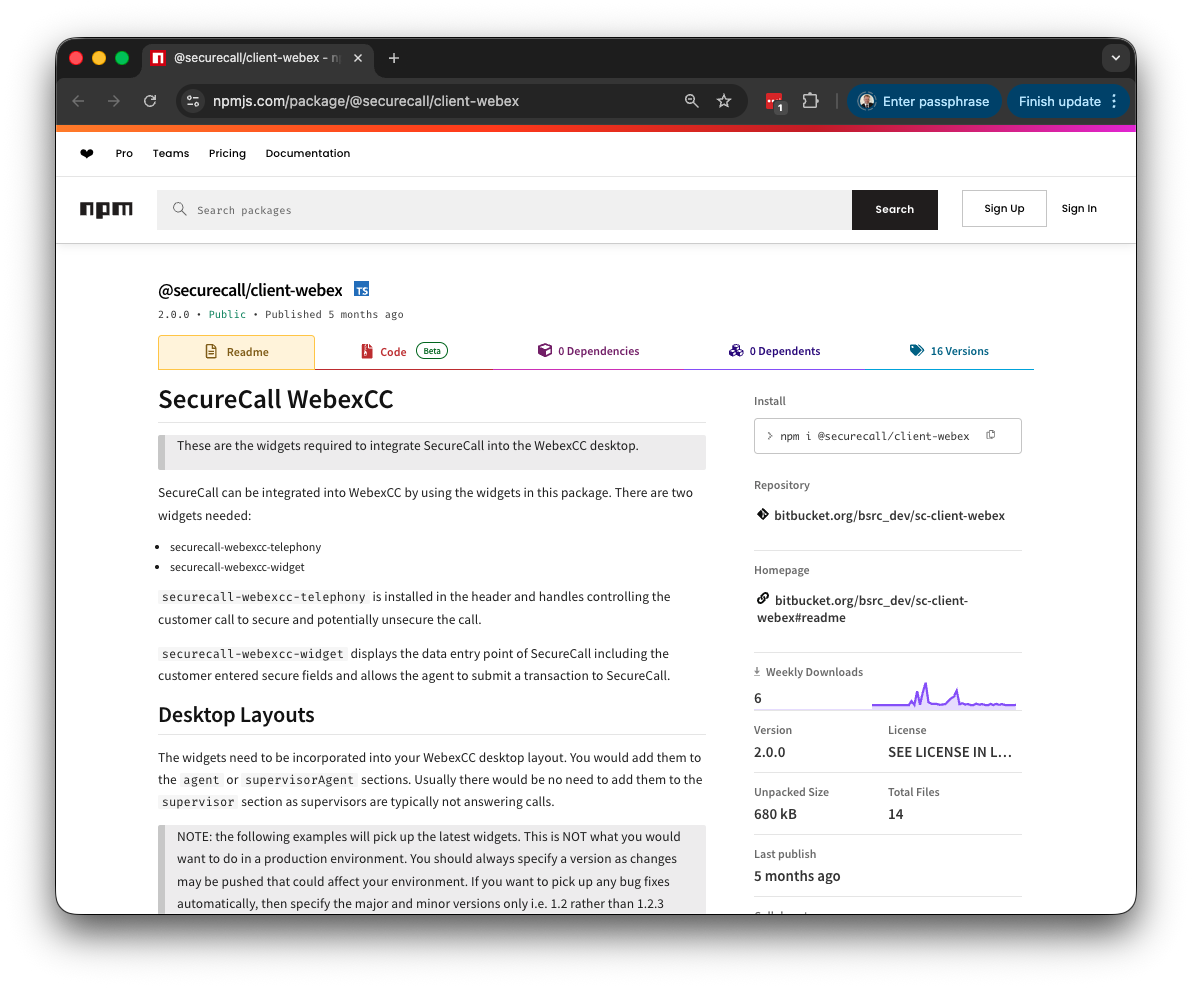
Option 3. Incorporate SecureCall in the Webex Contact Centre Desktop
Option 4: Embedded SecureCall in a Web Applications like CRM, found here:
This document guides staff through, option 1, 2 and 3, the use of SecureCall's stand-alone web page and their Webex services.
The four simple steps mapped out below are:
Step 1: Login to the web client
Step 2: Secure the phone call with their customer
Step 2: Enter sales related information
Step 3: Talk the customer through the process of entering their details and Monitor their progress as they do.
Step 4: Submit the payment
Please Note: This same process can be followed when SecureCall is embedded in the UCaas or CCaaS soft client applications or a CRM application. In most cases the 'login' steps below have been automated by those systems.
This process can be followed using the SecureCall Dummy Payment Gateway installed by us on day one, (A test card can be found below) or your own Payment Gateway once the service has gone live.
Option 1:
Start using SecureCall's standalone web client
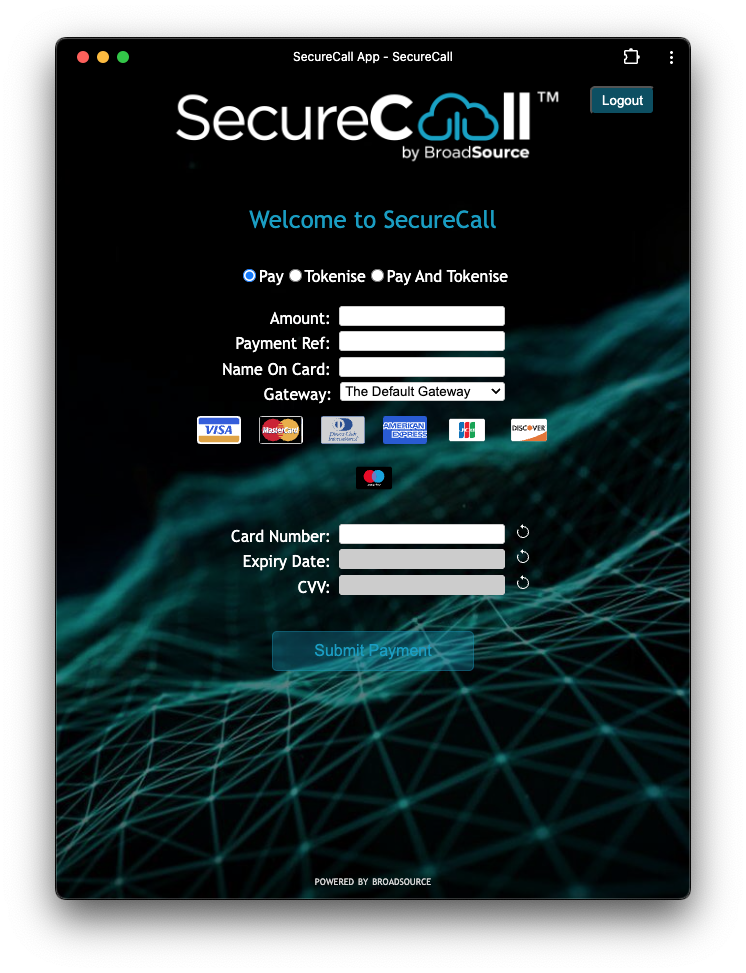
SecureCall : During a secured call
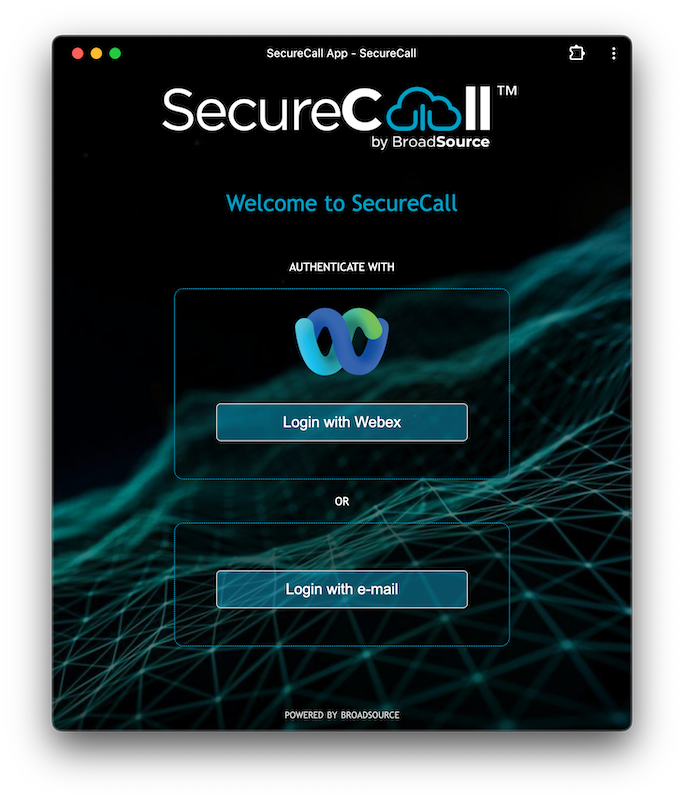
SecureCall : Login Page
If you are using SecureCall with your Webex Calling Service, click the 'Webex Login' button to login.
If SecureCall does not yet have a Webex token to authenticate, you will be re-directed to the Webex login page to then enter your Webex Calling username and password.
Once you successfully authenticated, Webex will re-direct you back to SecureCall and log you in.
A long life token from Cisco is then stored in your browser. Whilst it's valid, you won't need to enter a username and password.
For non-Webex users, please use the 'Login with e-mail' button . Use your email address and password that the SecureCall platform will have sent you separately.
That's it. You are ready to go!
SecureCall has configured the Webex Client as the default device to be secured. For Webex users who need to secure a different type of device (e.g Cisco MPP 8861) or have multiple Webex Devices operating at the same time, please visit this page to nominate which device(s) to use with SecureCall.
Make a call or answer a call from your customer using your phone service as you would normally do.
Note: A call must be ‘underway’ to then be secured. That is, you will need to be talking to your customer before attempting to 'secure the call'.
At any time during that conversation with your customer:
1. Bring the SecureCall client window into focus on your desktop
We suggest you say something like this to your customer:
"Great, thanks for purchasing XYZ!. Now before I take your payment,
I will just secure this call so that you don't need to speak your details to me.
I will ask you to type them into the key pad of your phone when the call is secured......"
2. When you are ready, click on Press to Secure button.
- You can do this in moments just before you want to take the customer's payment.
- There is no need to secure the call until then.
Once you see the page present the payment details, we suggest you say something like this to your customer:
"OK. That's done. The call is secured"
Note: If you have accidentally closed that window, simply go back to the SecureCall Web Page - https://client.securecall.cloud and login again even if you are already on a phone call with the customer. No need to hang up etc.
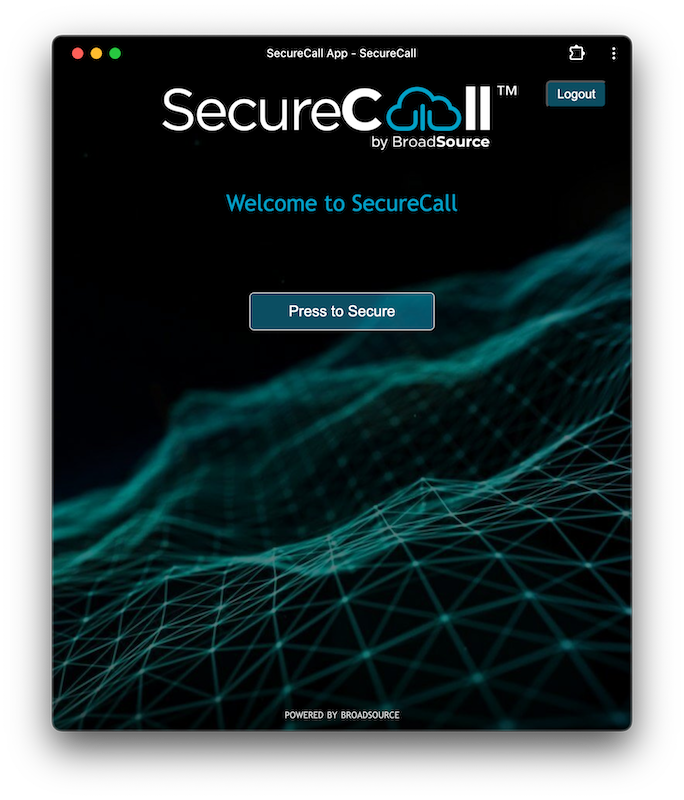
SecureCall : Taking a Payment
Let's take a dummy payment
When the payment page opens, you can be assured the call is now secure.
As the Merchant staff member, enter some sample sales transaction details:
a) An amount less than $1,000
b) Any data as the Payment Reference
c) Any name
d) The Payment Gateway requirement to process the payment (for Multi-Merchant ID environments)
Acting as the customer.....
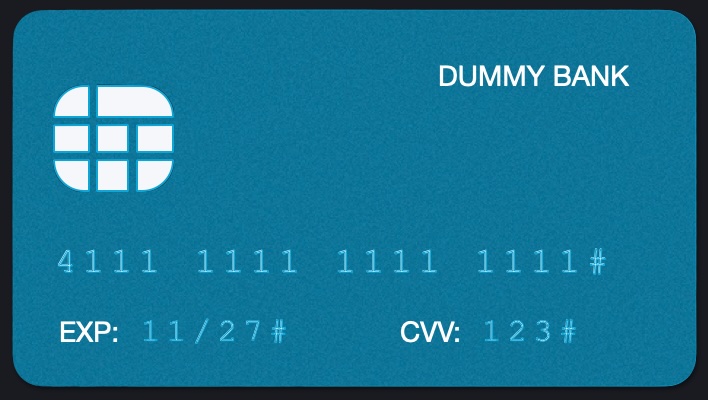
Here is a sample card you can use to test the payment process.
Using the dial pad of the 'customer's phone' go ahead and enter the 16 digit card number, followed by a 'hash'.
Then the card expiry, followed by a 'hash'.
Then the CVV, followed by a 'hash'.
Remember when entering these customer card details, type a 'hash' to complete each field.
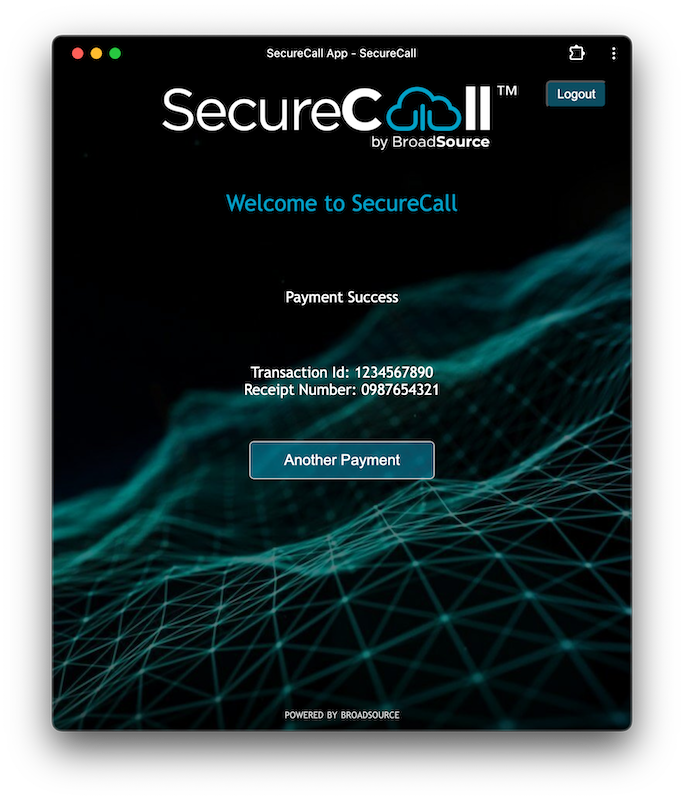
SecureCall : A successful payment
Once the payment has been submitted to your payment gateway, SecureCall will present the payment success or otherwise (insufficient funds for example) along with the Transaction ID, Receipt Number and a payload of information made available by the Payment Gateway.
These details can be copied and pasted into or ordering or customer management systems as a record of the transaction.
The 'payload' of information that is attached to the transaction from your Payment Gateway is available for presentation in the UI. Please talk to your SecureCall deployment partner about how the team can activate more (or less) information that is being returned.
At this point either you or the customer can choose to make another payment by selecting the button at the bottom of that window or complete your call. A hang up will take you back to the Secure Call window.
The following describes each of the fields:
Payment Action:
To only pay once, select Pay
To pay once and store the card details as a ‘token’, select Pay and Tokenise
To only store the card details, select Tokenise
Amount:
This is the amount to pay, in dollars and cents. There is no need to add a $ sign.
Payment Reference:
This is a unique reference for this payment, which will be used by your finance department to perform reconciliation and can be used as a receipt number if required for the customer.
Token Reference:
If you are tokenising the card (saving the card for future payments), this is a unique reference that can be used for the token that is returned from the Payment Gateway, which can be passed to your payment systems for future payments.
Name on card:
The name on card is to be used by your customer for this payment. Ask the customer to provide it. For some banks this must be an exact match.
Gateway:
For environments where there are multiple Payment Gateway Merchant Accounts or Payment Providers. Staff can chose from the drop down list which provider is required for the current payment / call.
Card:
This is the card number, which is entered by the customer on their keypad and ending with a hash (#). Please ensure that they do not read out this number to you.
Expiry:
This is the expiry date of the card, which is entered by the customer on their keypad, in the format DDYY and ending with a hash (#). This must be a date in the future (i.e., beyond the current month). Please ensure that they do not read out this number to you.
CVV:
This is the security code on the card, which is entered by the customer on their keypad, ending with a hash (#). This must be either 3 or 4 digits (depending on the card). Please ensure that they do not read out this number to you.